Adding Member Conflicts
Written By Eric @ StageHub
Last updated 5 days ago
This feature requires the Starter or Pro plan.
In addition to users being able to add conflicts to their accounts on their own, stage managers can also capture conflicts outside of StageHub (such as part of the audition process or first-rehearsal paperwork) and add them to the platform on behalf of their members.
Production-entered conflicts will show up in the member’s account, and can be edited or deleted by them at any time. Stage managers can edit or delete conflicts entered by the production but cannot modify conflicts the user added on their own.
Keep in mind that conflicts entered on behalf of a user are visible to all productions they are a member of. Make sure you have permission to add their conflicts to StageHub.
Getting Started
Navigate to your production
Please note this feature is only available in the new Backstage Management portal
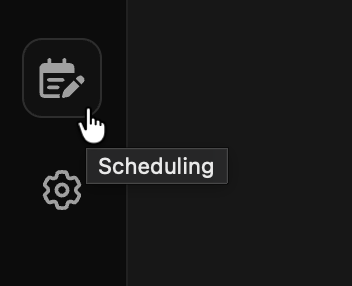
Open the Scheduling module from the side navigation bar
Click on Conflicts from the secondary navigation
From here, you can view a list of all conflicts for all active members of your production. If you are on the Starter or Pro plan, you can also see any conflicts with collisions (meaning the conflict overlaps with a call that person is scheduled for).
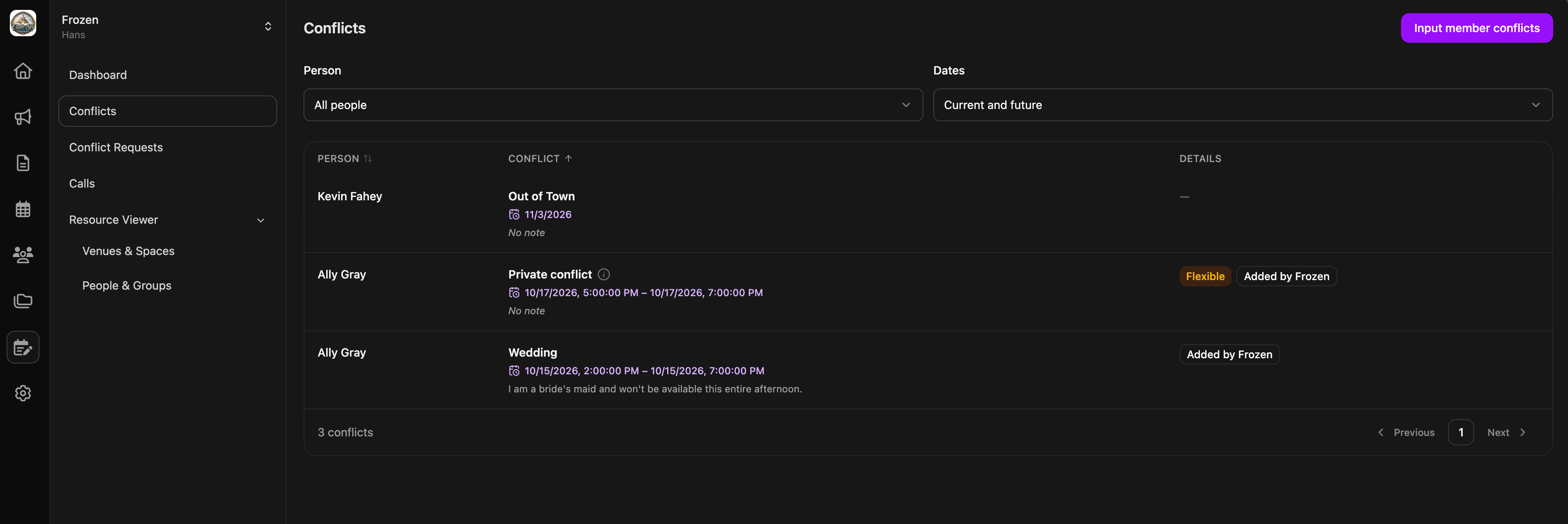
In the top-right corner, click Input Member Conflicts
You will be prompted to pick the person you wish to add conflicts on behalf of.
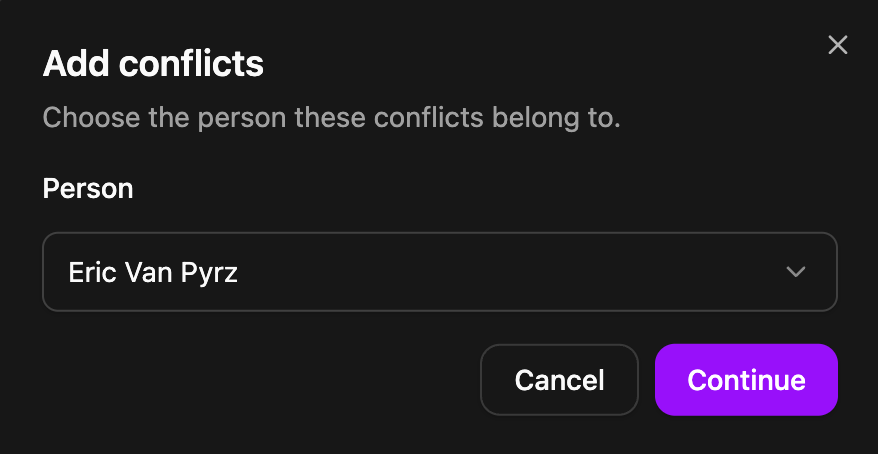
Add one or more conflicts
You can add all the conflicts for the selected member upfront, clicking Add another conflict to add another row to the table.
You can toggle various options for each conflict, including making it all day/multiple days, private or flexible.
If you mark a conflict as Private you will not be able to edit it after saving. Private conflicts hide the title from production managers, while still allowing the user to see what its called.
Approve or deny conflicts (optional)
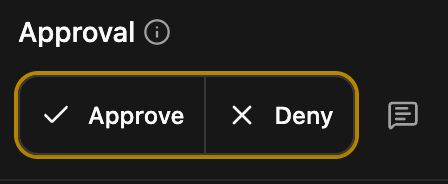
If you are using conflict approvals, any conflicts you add here that overlap with an approval window will prompt you to approve or deny the request, along with adding an optional note. An approval status must be provided for any conflicts that overlap with a window, to ensure you have a paper trail.
Click add to commit the conflicts to the user's account
After saving, you’ll be able to see and edit or delete any conflicts you added on behalf of a user, from the conflicts table. They will also be able to see that you added conflicts on their behalf.
Was this helpful?
Still need help? Ask the team